{"slug":"deploy-tailscale-with-microsoft-intune","title":"Deploy Tailscale with Microsoft Intune","tags":["tailscale"],"agent_summary":"Last validated: Jan 5, 2026","trigger_phrases":[],"runnable":false,"markdown":"\r\n# Deploy Tailscale with Microsoft Intune\r\n\r\nLast validated: Jan 5, 2026\r\n\r\nThis integrationis available for [the Standard, Premium, and Enterprise plans](https://tailscale.com/pricing).\r\n\r\nYou can use the [Microsoft Intune](https://www.microsoft.com/en-us/security/business/microsoft-intune) mobile device management (MDM) solution to deploy Tailscale in your organization. You can configure a number of [system policies](https://tailscale.com/docs/features/tailscale-system-policies), and you can then use Microsoft Intune to deploy these policies across devices in your organization. Tailscale system policies through Microsoft Intune are supported on Windows, macOS, iOS, tvOS, and Android.\r\n\r\nIf you need help deploying Tailscale using Microsoft Intune, or would like to suggest any feature enhancements, contact our [support](https://tailscale.com/contact/support#support-form) or [sales](https://tailscale.com/contact/sales) teams.\r\n\r\nFollow the steps in this document to get started. On macOS and iOS, you'll create a configuration profile containing a system policy that displays the name of your organization in the Tailscale client as an example. You'll then deploy it to a set of devices already enrolled in Microsoft Intune. On Android, you'll distribute Tailscale and enforce restrictions already available in the Tailscale app by defining a custom configuration.\r\n\r\n## [Create, upload, and deploy a Tailscale configuration profile for macOS/iOS/iPadOS](https://tailscale.com/docs/integrations/mdm/microsoft-intune\\#create-upload-and-deploy-a-tailscale-configuration-profile-for-macosiosipados)\r\n\r\nSee [Deploy Tailscale on macOS using MDM](https://tailscale.com/docs/integrations/mdm/mac) for general best practices and [Approve the Tailscale system extension automatically](https://tailscale.com/docs/integrations/mdm/mac#approve-the-tailscale-system-extension-automatically) to ensure the best end-user experience.\r\n\r\nTo get started with Tailscale and Microsoft Intune, you'll first need to determine which [system policies](https://tailscale.com/docs/features/tailscale-system-policies) you wish to impose on your devices. Once you know which system policies to impose and the value for each, you'll then need to create an Apple configuration profile (`.mobileconfig` file) to define them, and upload the profile to the Microsoft Intune admin center.\r\n\r\n01. Paste the contents of our [configuration profile template](https://tailscale.com/docs/integrations/mdm/mac#deploying-system-policies-in-a-configuration-profile), which provides preset values for the **ManagedByOrganizationName** and **IPAddressCopiedAlertSuppressed** policies into a new XML file called `Tailscale.mobileconfig`. This XML file with the `.mobileconfig` extension will become your configuration profile.\r\n02. Log in to the [Microsoft Intune admin center](https://intune.microsoft.com/?ref=AdminCenter).\r\n03. In the sidebar, select **Devices**, then choose **Configuration profiles** under the **Policy** section.\r\n04. A list of currently configured profiles will appear. Select the **Create** menu item, then choose **New Policy** from the dropdown menu that will appear.\r\n05. Select the platform you're looking to configure using the **Platform** dropdown menu. This will be either **macOS** or **iOS/iPadOS**.\r\n06. Choose **Templates** as the **Profile type**.\r\n07. Select the **Custom** template, and confirm with the **Create** button at the bottom of the templates list.\r\n08. Set a descriptive name and an optional description for the policy. For instance, `Tailscale macOS system policies`.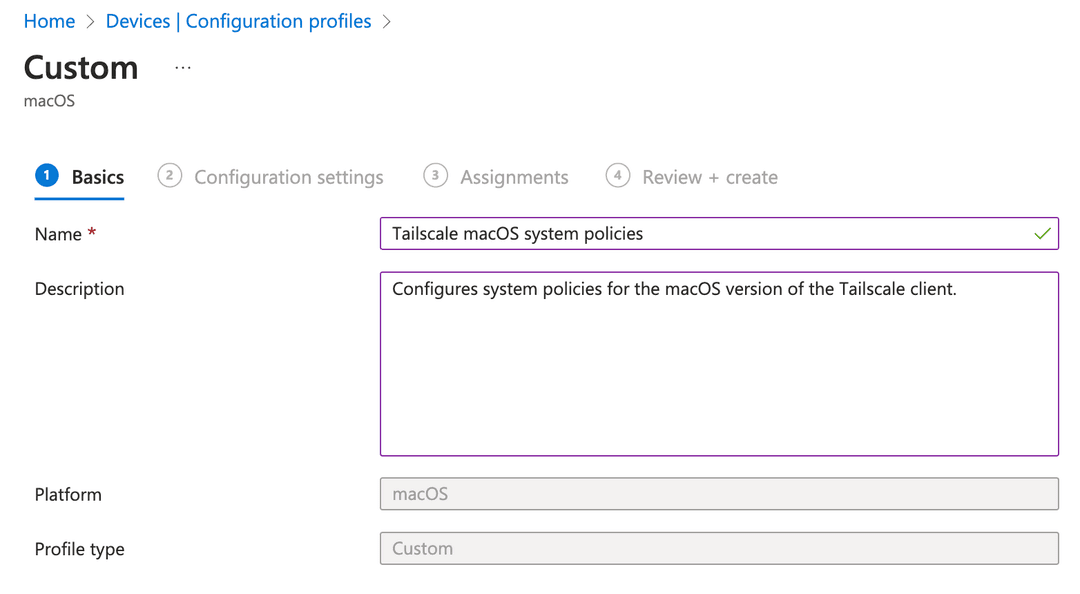\r\n09. In the following **Configuration settings** step, enter a name for the policy that will be displayed to users, and upload the `.mobileconfig` previously created. Use the **Device** deployment channel if asked. Select **Next** to continue.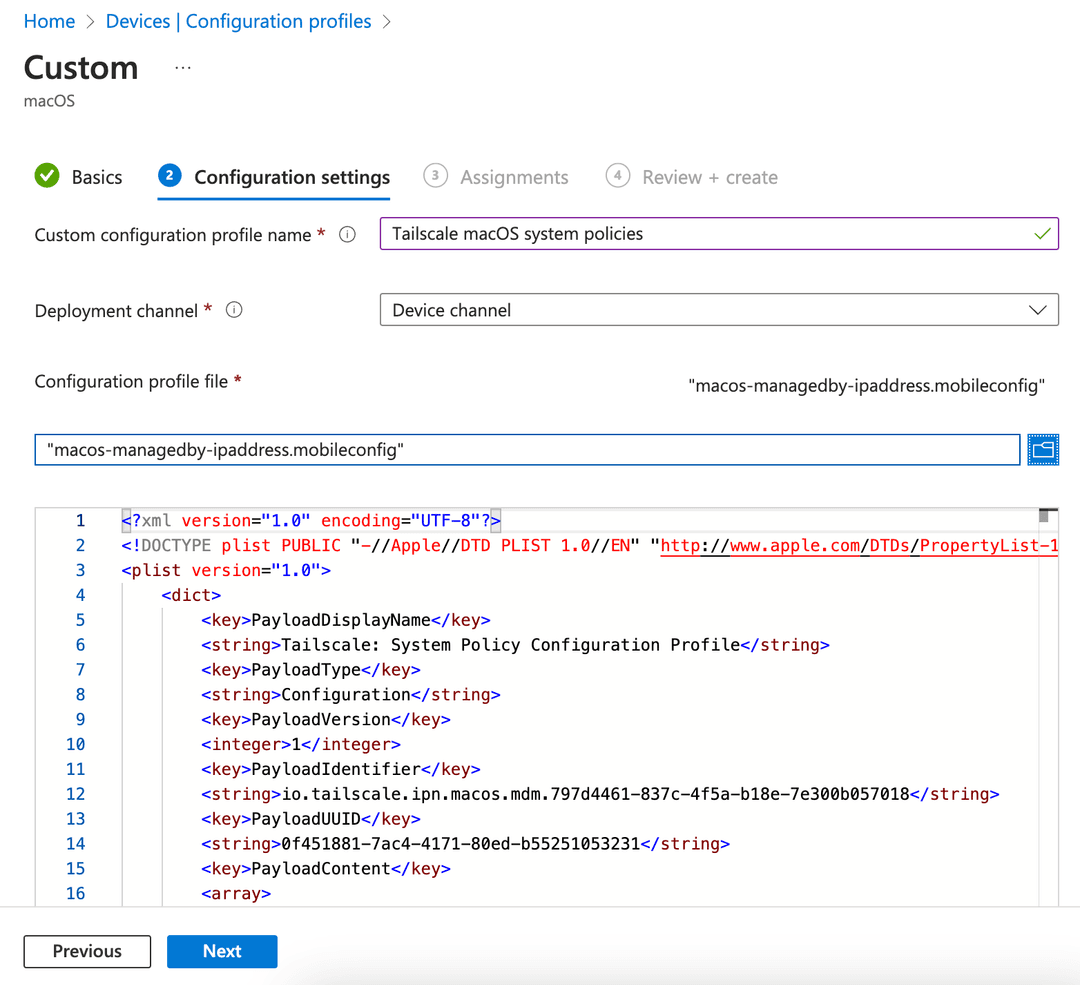\r\n10. Select the correct assignments in the **Assignments** tab. You can use the **Add all users** shortcut if you wish to deploy the configuration profile to all users and groups in your organization. Alternatively, select users and groups to deploy the policies to.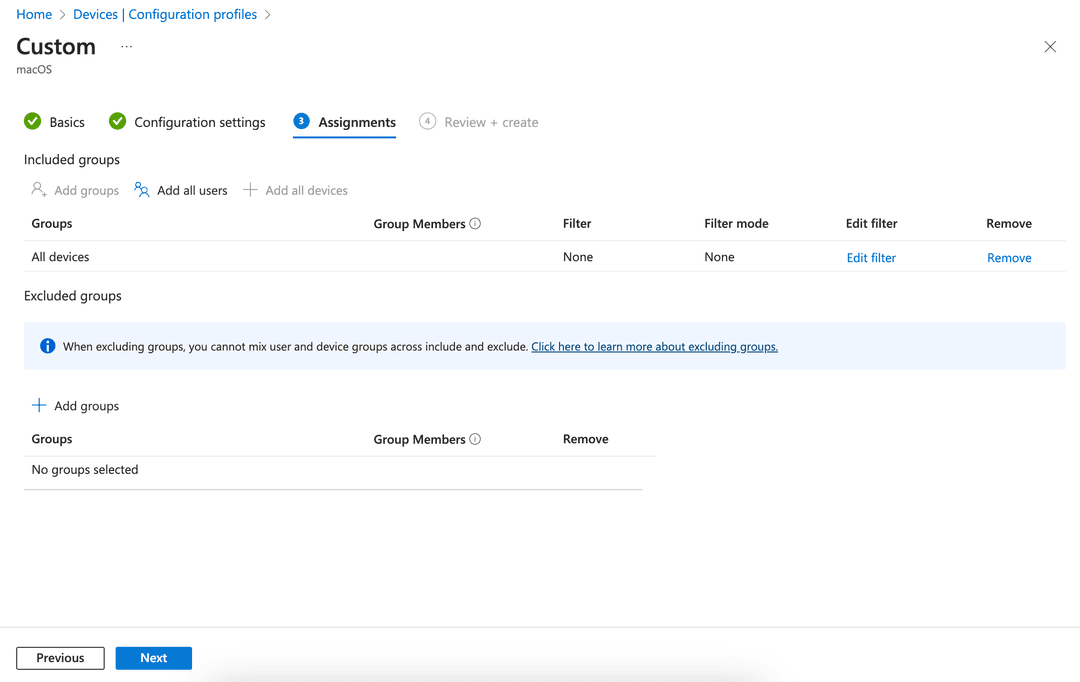\r\n11. Select **Next** to continue to the **Review** step. If everything checks out, select **Create** to deploy the policy.\r\n\r\nThe steps above are valid for both macOS and iOS deployments. If you have both macOS and iOS devices in your organization, follow the instructions twice. Creating two separate `.mobileconfig` files using the proper application bundle identifier for each platform, and then choose the right platform when asked by the Intune admin center.\r\n\r\nOnce you have followed these steps, Microsoft Intune will begin deploying the profile to all the users and groups you selected. After rebooting the device, each enrolled client should display the organization name in the Tailscale client menu as set in the sample configuration profile used.\r\n\r\n## [Create, upload, and deploy a Tailscale configuration profile for Windows](https://tailscale.com/docs/integrations/mdm/microsoft-intune\\#create-upload-and-deploy-a-tailscale-configuration-profile-for-windows)\r\n\r\nSee [Deploy Tailscale on Windows using MDM](https://tailscale.com/docs/integrations/mdm/windows-mdm) for general best practices.\r\n\r\nTo get started with Tailscale and Microsoft Intune, you'll first need to determine which [system policies](https://tailscale.com/docs/features/tailscale-system-policies) you wish to impose on your devices. Once you know which system policies to impose and the value for each, we recommend using the provided Tailscale ADMX file to import policies for a Tailscale configuration profile to be used with Microsoft Intune. [ADMX files](https://learn.microsoft.com/en-us/windows/client-management/understanding-admx-backed-policies) are a way to define group policies on Windows.\r\n\r\n01. Download the Tailscale ADMX file and ADML file from the [Tailscale repository](https://github.com/tailscale/tailscale/tree/main/docs/windows/policy).\r\n02. Log in to the [Microsoft Intune admin center](https://intune.microsoft.com/?ref=AdminCenter).\r\n03. In the sidebar, select **Devices**, then choose **Configuration profiles** under the **Policy** section.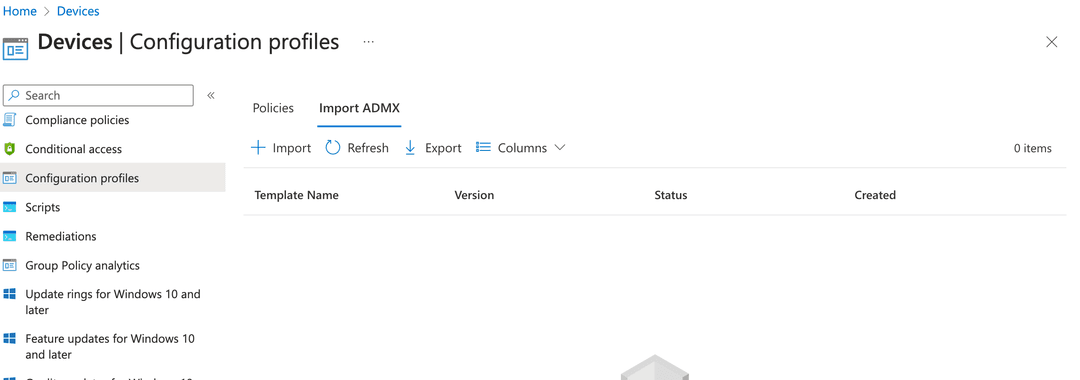\r\n04. First, import the Tailscale ADMX file. Select **Import ADMX**, then select the **Import** button.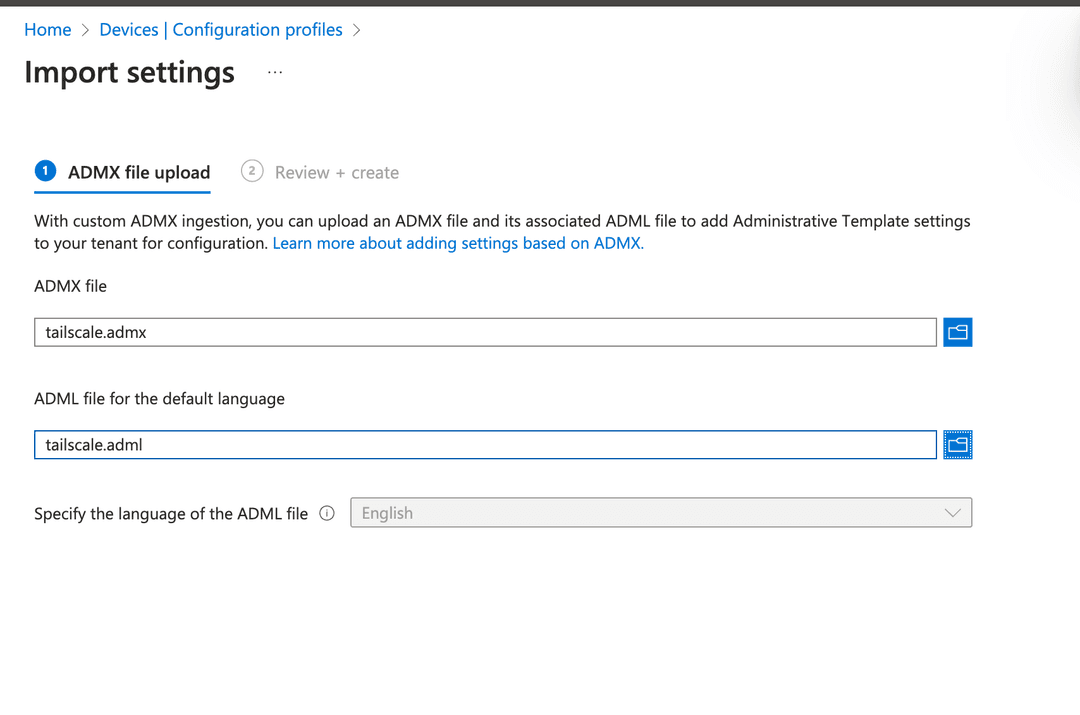\r\n05. Upload the Tailscale ADMX and Tailscale ADML file. Select **Next**, then **Create**. You can select **Refresh** to check the status of the upload and template's availability.\r\n06. Return to the **Policies** section. A list of currently configured profiles will appear. Select the **Create** menu item, then choose **New Policy** from the dropdown menu that will appear.\r\n07. Select **Windows 10 and later** using the **Platform** dropdown menu.\r\n08. Choose **Templates** as the **Profile type**.\r\n09. Select **Imported Administrative templates (Preview)**.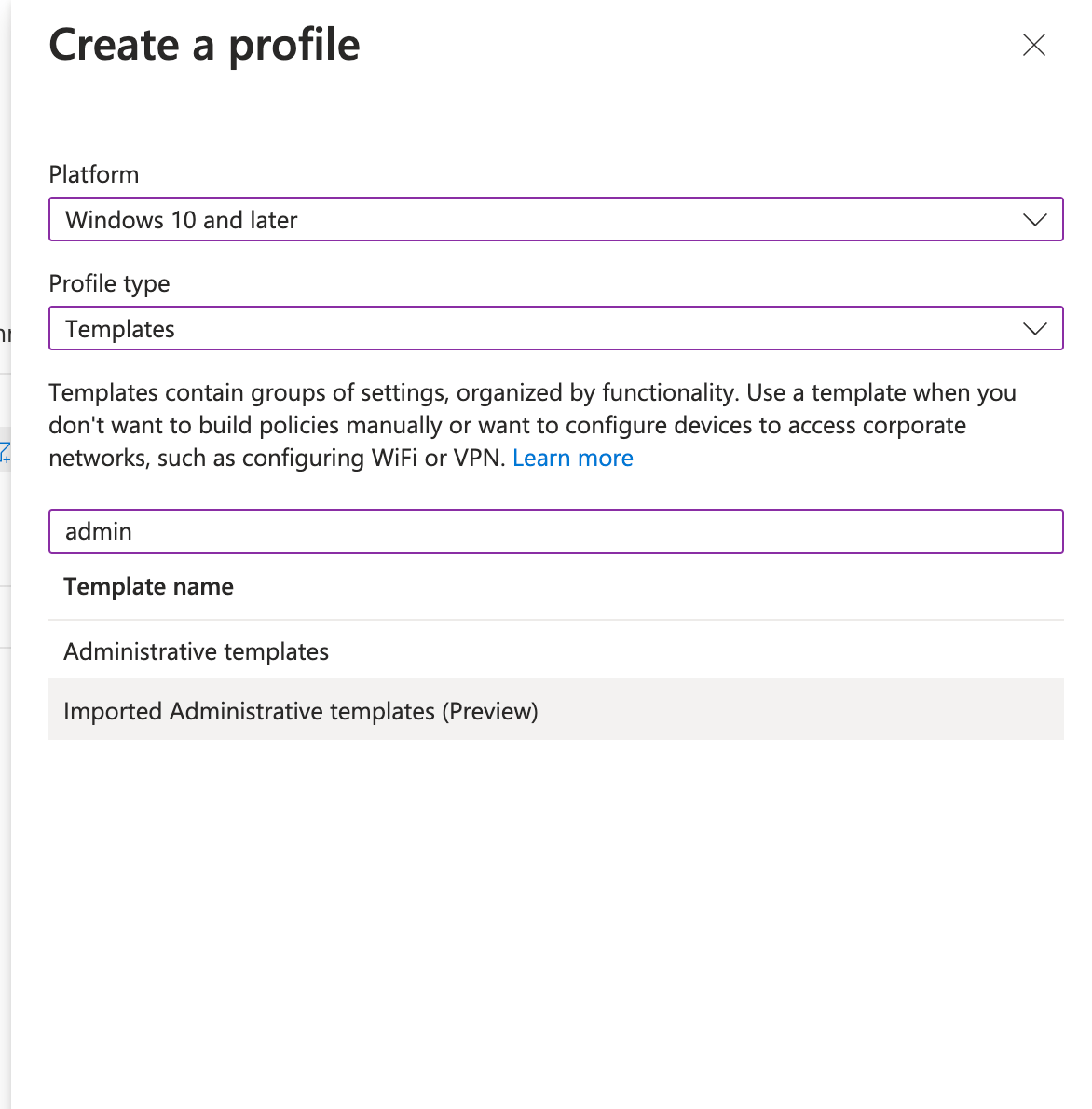\r\n10. Set a descriptive name and an optional description for the policy. For instance, `Tailscale windows policies`.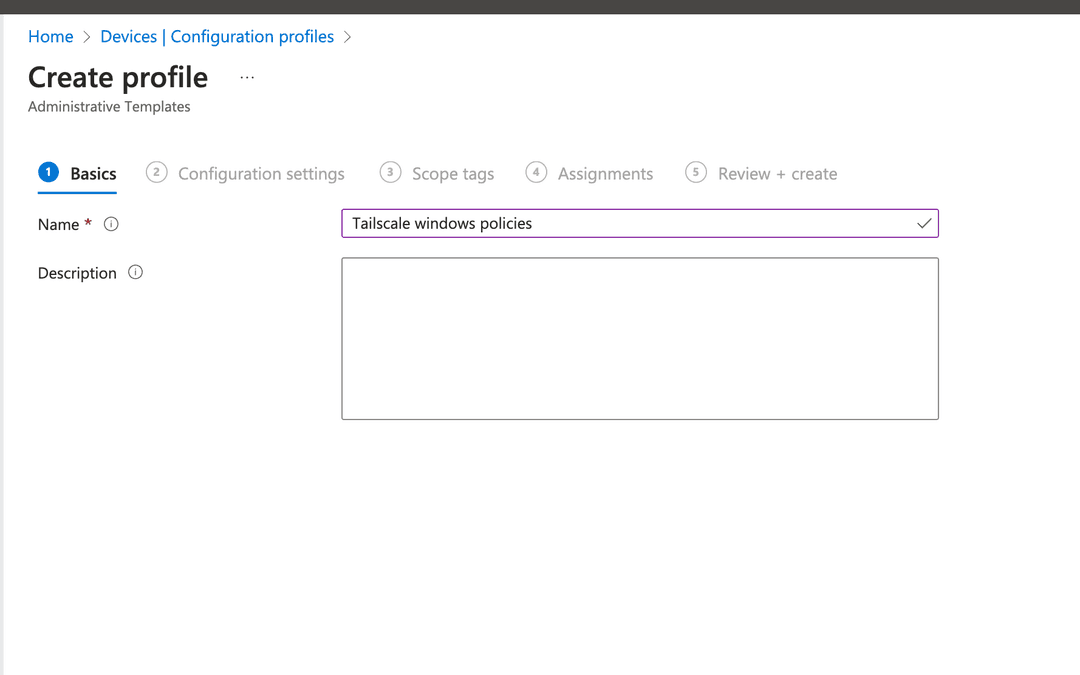\r\n11. Now you will find the Tailscale setting available for configuration.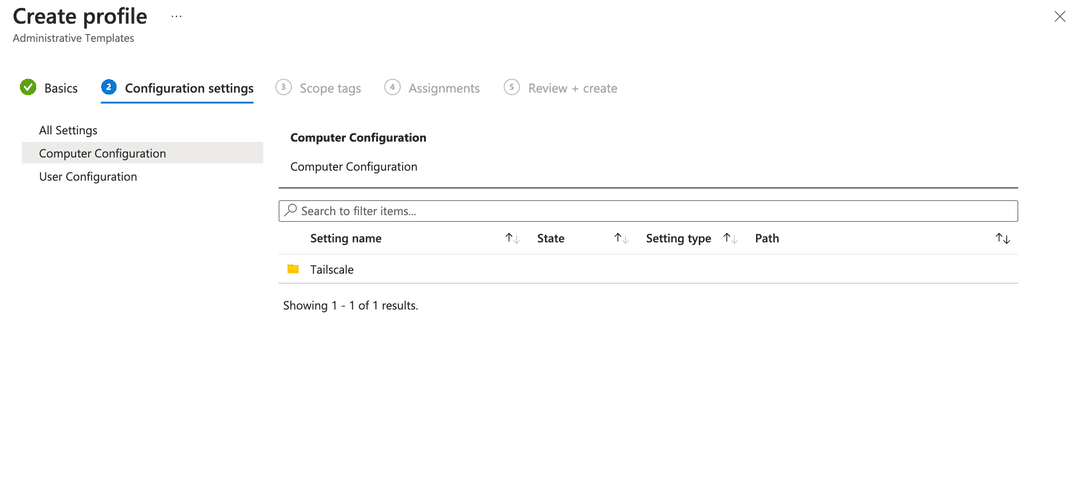When you select the Tailscale settings, you can browse through policies that you can use and set their values.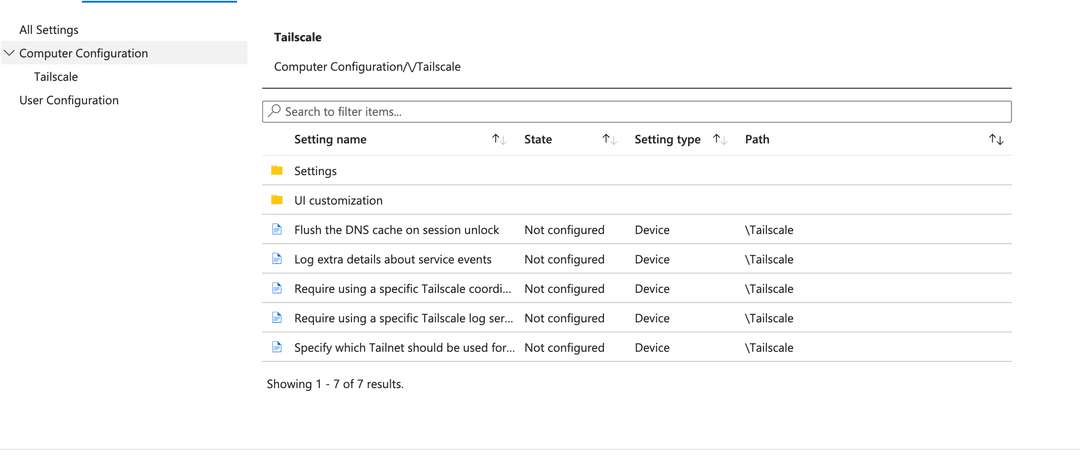Once you set a policy's value, the state of the policy should be shown in the Tailscale settings.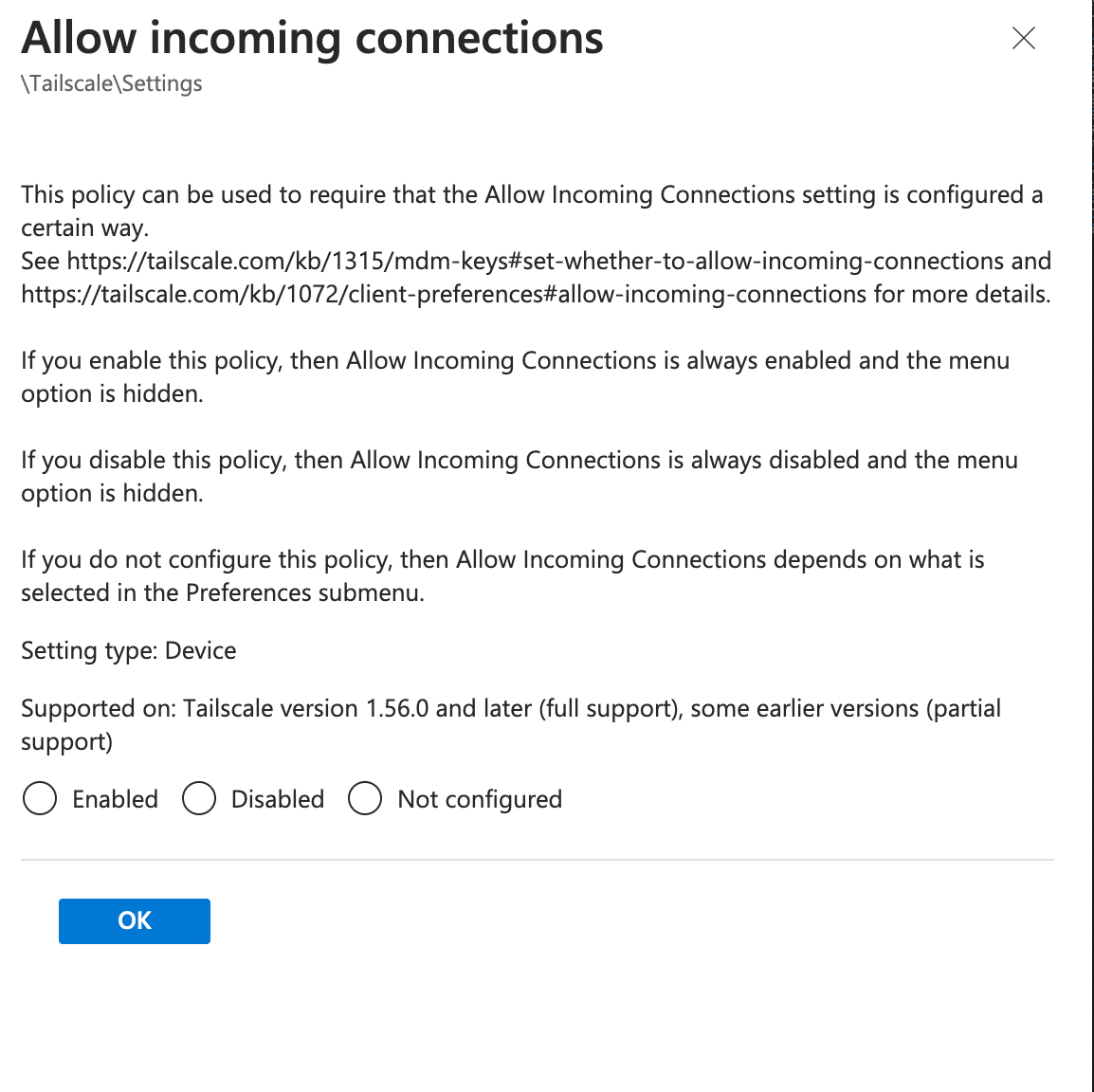\r\n12. Once you configure the policies you want to use, select **Next** to go to the **Scope Tags** section. You can assign a tag for the configuration profile if you have one. If you don't have any tags, select the **Default** option.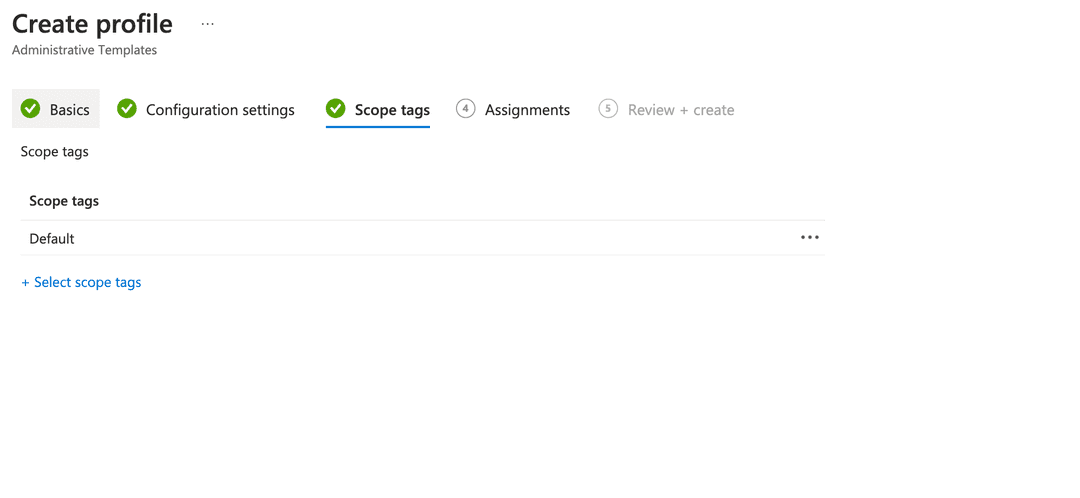\r\n13. Choose **Next**, and select your assignments in the **Assignments** tab. You can choose **Add all users** to deploy the configuration profile to all users, or select specific users or groups of users.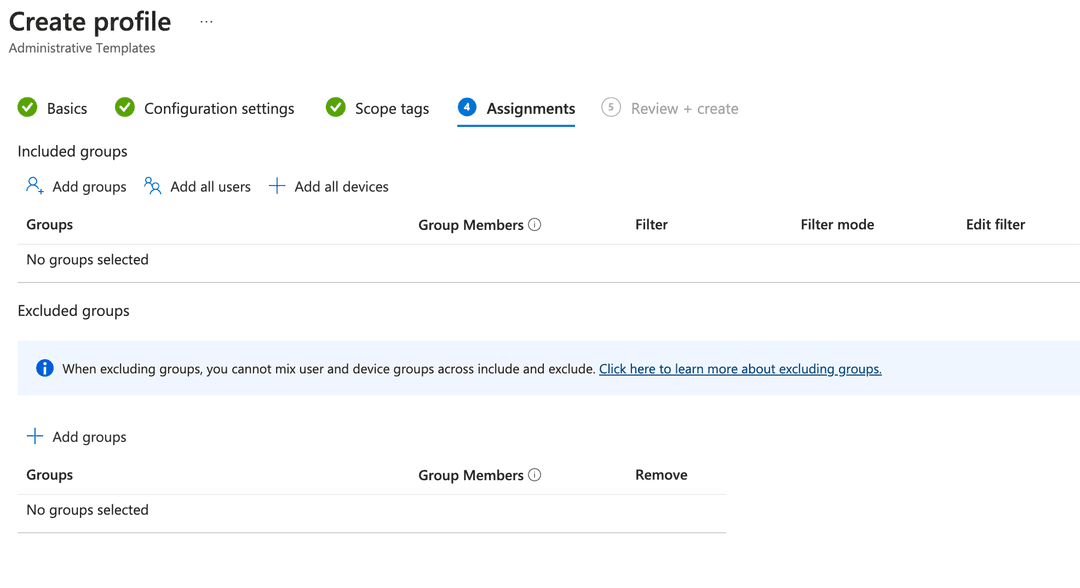\r\n14. Select **Next** and review your profile settings before selecting **Create**.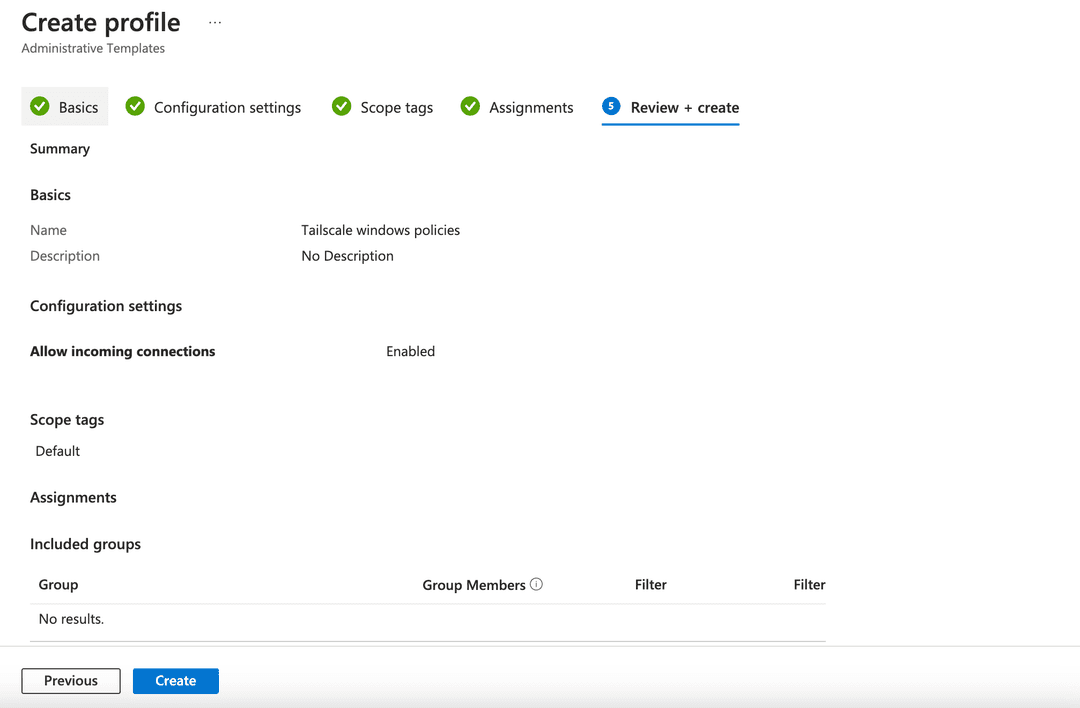\r\n\r\nOnce you have followed these steps, Microsoft Intune will begin deploying the profile to all the users and groups you selected. After rebooting the device, each enrolled client should display the organization name in the Tailscale client menu as per the sample configuration profile used. For more documentation on importing ADMX files, check the [Microsoft Intune documentation](https://learn.microsoft.com/en-us/mem/intune/configuration/administrative-templates-import-custom).\r\n\r\n## [Deploy Tailscale for Android using Microsoft Intune](https://tailscale.com/docs/integrations/mdm/microsoft-intune\\#deploy-tailscale-for-android-using-microsoft-intune)\r\n\r\nConfiguring Microsoft Intune to deploy Tailscale is done in two steps. You'll begin by adding the Tailscale app as a Managed Google Play application. Then, you can optionally decide to deploy system policies using an Android managed configuration. This will let you configure the Tailscale Android client to fit the needs of your organization.\r\n\r\nBefore continuing, ensure that all Android devices you wish to deploy Tailscale to are already properly enrolled in Intune. Because we are going to add Tailscale as a _Managed Google Play app_, you will also need to connect your Intune account to your Managed Google Play account. For more information on the account connection process, refer to the documentation published by Microsoft in [Connect your Intune account to your Managed Google Play account](https://learn.microsoft.com/en-us/mem/intune/enrollment/connect-intune-android-enterprise).\r\n\r\n### [Adding the Tailscale app to Microsoft Intune](https://tailscale.com/docs/integrations/mdm/microsoft-intune\\#adding-the-tailscale-app-to-microsoft-intune)\r\n\r\n1. Log in to the [Microsoft Intune admin center](https://intune.microsoft.com/?ref=AdminCenter).\r\n2. Select **Apps** \\> **All apps** \\> **Add**, then select **Managed Google Play app**.\r\n3. Search for **Tailscale** and confirm.\r\n4. You might want to assign Tailscale to a group of users, so that Tailscale will be deployed automatically to these users' devices.\r\n\r\n### [Deploying Tailscale system policies on Android using Intune](https://tailscale.com/docs/integrations/mdm/microsoft-intune\\#deploying-tailscale-system-policies-on-android-using-intune)\r\n\r\nOnce Tailscale has been configured as a deployed app in Intune, you can optionally configure a set of [system policies](https://tailscale.com/docs/features/tailscale-system-policies) that will be enforced on the enrolled Android devices.\r\n\r\n1. Log in to the [Microsoft Intune admin center](https://intune.microsoft.com/?ref=AdminCenter).\r\n2. Select **Apps** \\> **App configuration policies** \\> **Add** \\> **Managed devices**.\r\n3. Pick a descriptive name for the policy, such as _Tailscale System Policies_. Choose **Android** as the platform.\r\n4. Select **Associated app** to display a list of configured applications. If you followed the previous steps, this list should include Tailscale. Select it to continue.\r\n5. Choose **Configuration settings**, then **Use configuration designer**, and then select **Add** to pick from the list of [available system policies](https://tailscale.com/docs/features/tailscale-system-policies).\r\n6. Enter your preferred system policy values.\r\n7. Select **OK** to save the configuration.\r\n\r\n\r\n\r\nAsk AI\r\n\r\nreCAPTCHA\r\n\r\nRecaptcha requires verification.\r\n\r\nprotected by **reCAPTCHA**\r\n","html":"Deploy Tailscale with Microsoft Intune
\nLast validated: Jan 5, 2026
\nThis integrationis available for the Standard, Premium, and Enterprise plans.
\nYou can use the Microsoft Intune mobile device management (MDM) solution to deploy Tailscale in your organization. You can configure a number of system policies, and you can then use Microsoft Intune to deploy these policies across devices in your organization. Tailscale system policies through Microsoft Intune are supported on Windows, macOS, iOS, tvOS, and Android.
\nIf you need help deploying Tailscale using Microsoft Intune, or would like to suggest any feature enhancements, contact our support or sales teams.
\nFollow the steps in this document to get started. On macOS and iOS, you'll create a configuration profile containing a system policy that displays the name of your organization in the Tailscale client as an example. You'll then deploy it to a set of devices already enrolled in Microsoft Intune. On Android, you'll distribute Tailscale and enforce restrictions already available in the Tailscale app by defining a custom configuration.
\n\nSee Deploy Tailscale on macOS using MDM for general best practices and Approve the Tailscale system extension automatically to ensure the best end-user experience.
\nTo get started with Tailscale and Microsoft Intune, you'll first need to determine which system policies you wish to impose on your devices. Once you know which system policies to impose and the value for each, you'll then need to create an Apple configuration profile (.mobileconfig file) to define them, and upload the profile to the Microsoft Intune admin center.
\n\n- Paste the contents of our configuration profile template, which provides preset values for the ManagedByOrganizationName and IPAddressCopiedAlertSuppressed policies into a new XML file called
Tailscale.mobileconfig. This XML file with the .mobileconfig extension will become your configuration profile. \n- Log in to the Microsoft Intune admin center.
\n- In the sidebar, select Devices, then choose Configuration profiles under the Policy section.
\n- A list of currently configured profiles will appear. Select the Create menu item, then choose New Policy from the dropdown menu that will appear.
\n- Select the platform you're looking to configure using the Platform dropdown menu. This will be either macOS or iOS/iPadOS.
\n- Choose Templates as the Profile type.
\n- Select the Custom template, and confirm with the Create button at the bottom of the templates list.
\n- Set a descriptive name and an optional description for the policy. For instance,
Tailscale macOS system policies.
\n- In the following Configuration settings step, enter a name for the policy that will be displayed to users, and upload the
.mobileconfig previously created. Use the Device deployment channel if asked. Select Next to continue.
\n- Select the correct assignments in the Assignments tab. You can use the Add all users shortcut if you wish to deploy the configuration profile to all users and groups in your organization. Alternatively, select users and groups to deploy the policies to.

\n- Select Next to continue to the Review step. If everything checks out, select Create to deploy the policy.
\n
\nThe steps above are valid for both macOS and iOS deployments. If you have both macOS and iOS devices in your organization, follow the instructions twice. Creating two separate .mobileconfig files using the proper application bundle identifier for each platform, and then choose the right platform when asked by the Intune admin center.
\nOnce you have followed these steps, Microsoft Intune will begin deploying the profile to all the users and groups you selected. After rebooting the device, each enrolled client should display the organization name in the Tailscale client menu as set in the sample configuration profile used.
\n\nSee Deploy Tailscale on Windows using MDM for general best practices.
\nTo get started with Tailscale and Microsoft Intune, you'll first need to determine which system policies you wish to impose on your devices. Once you know which system policies to impose and the value for each, we recommend using the provided Tailscale ADMX file to import policies for a Tailscale configuration profile to be used with Microsoft Intune. ADMX files are a way to define group policies on Windows.
\n\n- Download the Tailscale ADMX file and ADML file from the Tailscale repository.
\n- Log in to the Microsoft Intune admin center.
\n- In the sidebar, select Devices, then choose Configuration profiles under the Policy section.

\n- First, import the Tailscale ADMX file. Select Import ADMX, then select the Import button.

\n- Upload the Tailscale ADMX and Tailscale ADML file. Select Next, then Create. You can select Refresh to check the status of the upload and template's availability.
\n- Return to the Policies section. A list of currently configured profiles will appear. Select the Create menu item, then choose New Policy from the dropdown menu that will appear.
\n- Select Windows 10 and later using the Platform dropdown menu.
\n- Choose Templates as the Profile type.
\n- Select Imported Administrative templates (Preview).

\n- Set a descriptive name and an optional description for the policy. For instance,
Tailscale windows policies.
\n- Now you will find the Tailscale setting available for configuration.
 When you select the Tailscale settings, you can browse through policies that you can use and set their values.
 Once you set a policy's value, the state of the policy should be shown in the Tailscale settings.
\n- Once you configure the policies you want to use, select Next to go to the Scope Tags section. You can assign a tag for the configuration profile if you have one. If you don't have any tags, select the Default option.

\n- Choose Next, and select your assignments in the Assignments tab. You can choose Add all users to deploy the configuration profile to all users, or select specific users or groups of users.

\n- Select Next and review your profile settings before selecting Create.

\n
\nOnce you have followed these steps, Microsoft Intune will begin deploying the profile to all the users and groups you selected. After rebooting the device, each enrolled client should display the organization name in the Tailscale client menu as per the sample configuration profile used. For more documentation on importing ADMX files, check the Microsoft Intune documentation.
\n\nConfiguring Microsoft Intune to deploy Tailscale is done in two steps. You'll begin by adding the Tailscale app as a Managed Google Play application. Then, you can optionally decide to deploy system policies using an Android managed configuration. This will let you configure the Tailscale Android client to fit the needs of your organization.
\nBefore continuing, ensure that all Android devices you wish to deploy Tailscale to are already properly enrolled in Intune. Because we are going to add Tailscale as a Managed Google Play app, you will also need to connect your Intune account to your Managed Google Play account. For more information on the account connection process, refer to the documentation published by Microsoft in Connect your Intune account to your Managed Google Play account.
\n\n\n- Log in to the Microsoft Intune admin center.
\n- Select Apps > All apps > Add, then select Managed Google Play app.
\n- Search for Tailscale and confirm.
\n- You might want to assign Tailscale to a group of users, so that Tailscale will be deployed automatically to these users' devices.
\n
\n\nOnce Tailscale has been configured as a deployed app in Intune, you can optionally configure a set of system policies that will be enforced on the enrolled Android devices.
\n\n- Log in to the Microsoft Intune admin center.
\n- Select Apps > App configuration policies > Add > Managed devices.
\n- Pick a descriptive name for the policy, such as Tailscale System Policies. Choose Android as the platform.
\n- Select Associated app to display a list of configured applications. If you followed the previous steps, this list should include Tailscale. Select it to continue.
\n- Choose Configuration settings, then Use configuration designer, and then select Add to pick from the list of available system policies.
\n- Enter your preferred system policy values.
\n- Select OK to save the configuration.
\n
\n
\nAsk AI
\nreCAPTCHA
\nRecaptcha requires verification.
\nprotected by reCAPTCHA
\n"}